);

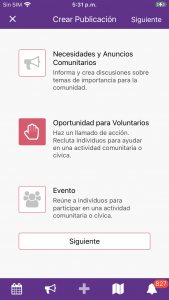
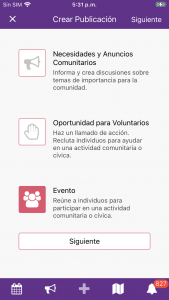
Crear Publicaciones

Necesidades y Anuncios Comunitarios

  1. Crear (+)
  2. Seleccionar tipo de publicación: Necesidad/Anuncio Comunitario
  3. Selecciona Categoría(s)
  4. Configuració de privacidad: Público es automaticamente aplicado, selecciona Privado y define cual de tus grupos debe ser incluido
  5. Incluir un Título
  6. Incluir Detalles
  7. Incluir hashtags
  8. Actividad Remota (sin ubicación)
  9. Ubicación – entrar el local o dirección
  10. Imágenes o vídeos
  11. Dale al botón Publicar

Oportunidades de Voluntarios

    1. Crear (+)
    2. Seleccionar tipo de publicación: Oportunidad para Voluntarios
    3. Selecciona Categoría(s)
    4. Configuració de privacidad: Público es automaticamente aplicado, selecciona Privado y indica que grupos a inlcuir
    5. Incluir un Título
    6. Incluir Detalles
    7. Incluir hashtags
    8. Indicar cuantos voluntarios necesitas
    9. Incluir Información adicional para voluntarios (detalles del trabajo, conocimientos requeridos, algún equipo que deban tener, etc.)
    10. Si el evento provee Horas de servicios disponibles – desliza a derecha
    11. Selecciona la Fecha de inicio
    12. Selecciona la Fecha de finalización
    13. Selecciona la Hora de inicio
    14. Selecciona la Hora de finalización
    15. Actividad Remota (sin ubicación) si la actividad es virtual
    16. Ubicación – entrar el local o dirección
    17. Puedes Editar Categorías
    18. Puedes Editar o compartir con grupos (Si el evento es privado puedes editarlos grupos elegidos. Si el evento es público puedes elegir grupos con los que compartir el evento)
    19. Seleccionar Imágenes o Vídeos (se require al menos una).
    20. Dar al botón Publicar

    Eventos

      1. Crear (+)
      2. Seleccionar tipo de publicación: Evento
      3. Selecciona Categoría(s)
      4. Configuració de privacidad: Público es automaticamente aplicado, selecciona Privado y indica que grupos a inlcuir
      5. Incluir un Título
      6. Incluir Detalles
      7. Incluir hashtags
      8. Selecciona la Fecha de inicio
      9. Selecciona la Fecha de finalización
      10. Selecciona la Hora de inicio
      11. Selecciona la Hora de finalización
      12. Actividad Remota (sin ubicación) si la actividad es virtual
      13. Ubicación – entrar el local o dirección
      14. Puedes Editar Categorías
      15. Puedes Editar o compartir con grupos (Si el evento es privado puedes editarlos grupos elegidos. Si el evento es público puedes elegir grupos con los que compartir el evento)
      16. Seleccionar Imágenes o Vídeos (se require al menos una).
      17. Dar al botón Publicar

      Comentarios y Testimonios

      Entrada de Comentario/Testimonio

      Crear comentario

      1. Selecciona publicación
      2. Dar en Comentarios 
      3. Entrar comentario
      4. Dar en botón de publicar comentario

      Editar comentario

      1. Dar en menu (•••) del comentario
      2. Seleccionar Editar
      3. Hacer los cambios
      4. Dar en botón de publicar comentario

      Borrar comentario

      1. Dar en menu (•••) del comentario
      2. Seleccionar Borrar
      3. Confirmar – Si


      Entradas de Tiempo Voluntario a Grupo

      Aprende como navegar y entrar tiempo voluntario a tu grupo asociado.

      1. Selecciona el grupo
      2. Selecciona el tab “entradas”
      3. Selecciona “+ registro” 
      4. Entra descripción de tarea
      5. Entra las horas trabajadas
      6. Edita la fecha según necesario
      7. Sube foto o video (no es requerido)
      8. Publica entrada

      Crear y Manejar Borradores de Publicaciones

      Crear y Editar Borrador

      Crear Borrador

      1. Crear (+)
      2. Seleccionar tipo de publicación
      3. Elegir categoría o Saltar
      4. Incluir un título – es lo mínimo requerido para Guardar como borrador
      5. Guardar como borrador

      Editar Borrador

      1. Selecciona el borrador a editar
      2. Abre el sub menu – esquina superior derecha (•••)
      3. Selecciona Editar Publicación
      4. Haz los cambios necesarios
      5. Selecciona Salvar Borradar o Publicar (si todos los detalles requeridos estan incluidos el boton estara disponible)


      Asignar Administradores de Publicación

      Admins ayudan en colaboración para la creación del evento. Al asignar admins a la publicación los admins podrán editar contenido, hacer check in/out de voluntarios y participantes, al igual que proveer calificación de participación de voluntarios.

      1. Selecciona el publicación
      2. Abre el sub menu – esquina superior derecha (•••)
      3. Selecciona Editar Publicación
      4. Selecciona el butón Añadir Admins
      5. Busca usuario por nombre
      6. Escoge usuario
      7. Selecciona Añadir
      8. Salva Borrador o Publica

      Para revisar lista de admins y voluntarios:

      1. Abre la publicación
      2. Selecciona Voluntarios (botón) o Registro de Voluntario
      3. Selecciona botón de lista de voluntarios (•••)

      Create Posts

      Create Post - Announcement
      1. Open CivicRush
      2. Tap  on the bottom bar
      3. Select post type: Community Needs/Announce
      4. Select one or more categories or tap Skip for now
      5. Enter all information required to publish (Title, Details, Remote or Location, and Media) or save as a draft (only requires a title)
      6. Tap Publish or Save as Draft

      Create a Remote or Virtual Event
      1. Open CivicRush
      2. Tap on the bottom bar
      3. Select post type: Event
      4. Select one or more categories or tap Skip for now
      5. Enter all the information required to publish (Title, Details, Remote or Location, Dates, Times, and Media) or save as a draft (only requires a title)
      6. Tap Publish or Save as Draft

      Create a Volunteer Opportunity

      To create and manage tasks and shifts for your volunteer opportunity, go to the web app available at: https://web.civicrush.com

      1. Open CivicRush
      2. Tap on the bottom bar
      3. Select Post type: Volunteer Opportunity
      4. Select one or more categories or tap Skip for now
      5. Enter all the information required to publish (Title, Details, Volunteer Count and Details, Remote or Location, Dates, Times, Media) or save as a draft (only requires a title)
      6. Tap Publish or Save as Draft

      Define an Admin for a Post

      1. Open the Draft or Published Post
      2. Tap in the top right
      3. Tap Edit Event Details
      4. Scroll down to the Admins section and tap Add Admins
      5. Enter a username in the search field or scroll through the user list
      6. Select up to 5 Admins and tap Add
      7. Tap Publish or Save as Draft if in draft mode

      Additional Features

      Like a Post

      1. Select a post you want to like and tap
      2. Alternatively, tap the post’s title or image to view the post and tap 

      Report a Post

      Currently, you can report a post for the following reasons:

      • Malicious or hate speech
      • Harassment 
      • Copyright violation
      • Confusion or impersonation
      • Suspected terrorism
      • Harm to minors
      • Gore, mutilation, bestiality, or necrophilia
      • False or misleading information
      • I don’t like it/I don’t want to see it
      • Other reasons

      To report a post:

      1. Select the post
      2. Tap the submenu ••• above the post 
      3. Tap Report
      4. Select the reason
      5. Describe the issue as detailed as possible
      6. Tap Send

      Volunteering in the CivicRush app

      Volunteer Sign Up

      1. Select a volunteer post
      2. Scroll down and tap Volunteer Sign Up or alternatively, tap the Volunteer Sign Up tab at the top
      3. Tap Sign Me Up!
      For volunteer posts with multiple tasks and shifts:
      1. Scroll down and tap Volunteer Sign Up or alternatively, tap the Volunteer Sign Up tab at the top
      2. Tap Select Tasks and Shifts
      3. Select the tasks and shifts you want and tap Save

      Events you sign up for can be viewed under the engagements tab in your profile.


      Cancel Sign Up

      1. Select the volunteer post you signed up for
      2. On the “About” page, tap Volunteer Sign Up or tap the Volunteer Sign Up tab at the top
      3. Tap Cancel Sign Up
      For volunteer posts with multiple tasks and shifts:
      1. Select the volunteer post you signed up for
      2. On the “About” page, tap Volunteer Sign Up or tap the Volunteer Sign Up tab at the top
      3. Tap View Tasks and Shifts
      4. Deselect any tasks and shifts and tap Save

      Volunteer Comments

      You must be signed up as a volunteer to view and post comments!

      1. Select a volunteer post
      2. Tap Write comment… at the bottom of the post
      3. Write your comment and tap  to send

      To reply to a comment:

      1. Tap the reply button under the comment

      Edit Comment

      1. Tap the comment’s menu (•••)
      2. Tap Edit
      3. Edit your comment and tap to send

      Delete Comment

      1. Tap the comment’s menu (•••)
      2. Tap Delete

      Search

      Search by Keyword
      1. Tap Search at the top of the screen
      2. Enter a keyword in the search field
      3. Tap search on the keyboard

      Search by Name
      1. Tap Search at the top of the screen
      2. Enter a name in the search field
      3. Tap search on the keyboard

      Search by Username
      1. Tap Search at the top of the screen
      2. Enter a @username in the search field
      3. Tap search on the keyboard

      Post Gallery

      Gallery Upload, Save, Delete, Like

      1. Select a post
      2. Tap on the Gallery tab
      3. Tap Add Media
        Alternative: Tap the submenu button ••• and tap Upload Gallery Media
      4. Once uploaded, tap ••• under the  uploaded photo to Save or Delete
      5. Tap on any image uploaded by others to like

      If you’re experiencing difficulties accessing the photos on your phone, please visit this page for assistance.